
How to quickly give access to Google Analytics
Follow the link and follow the instructions in the GIF.
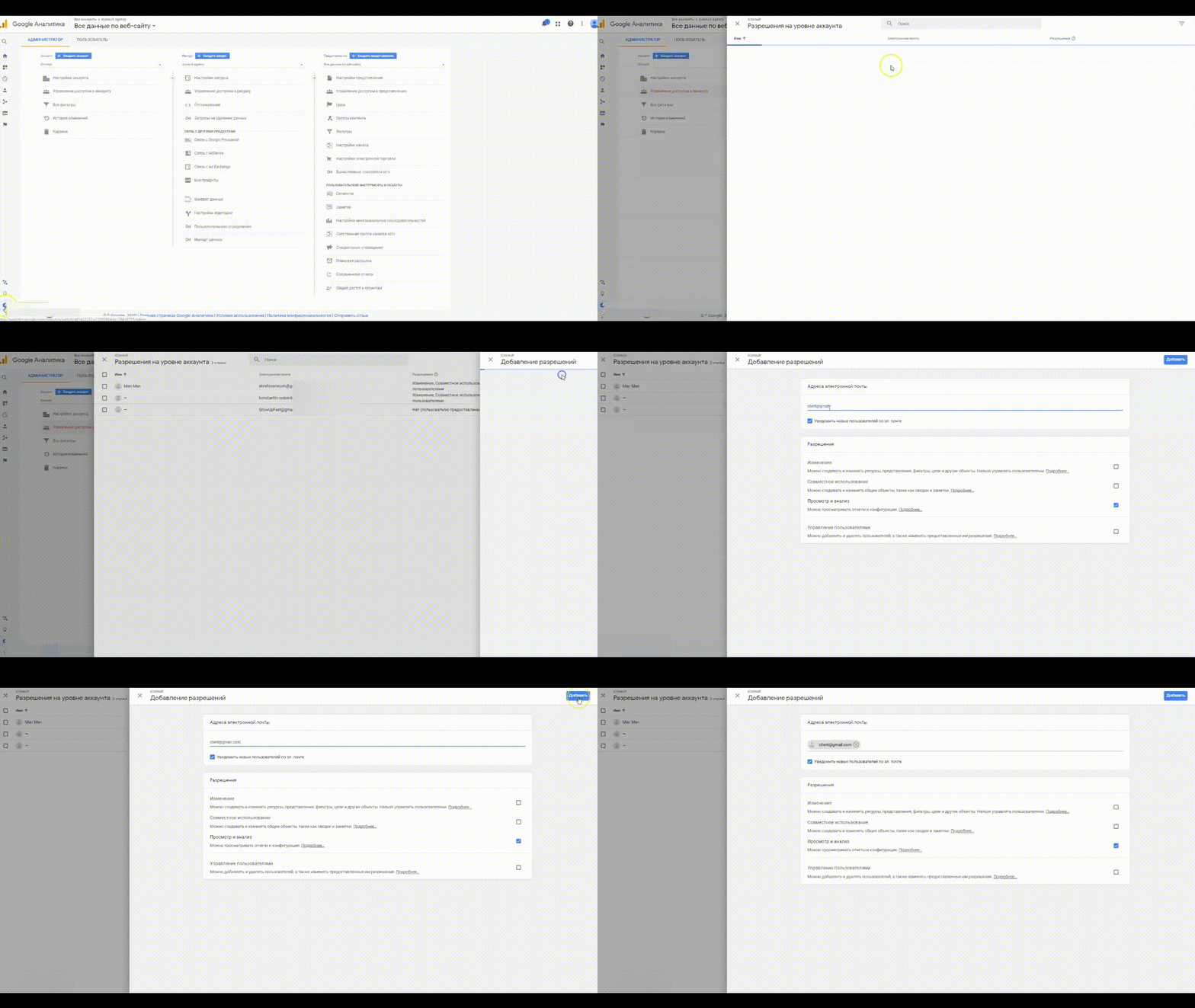
Let's break it down in more detail 👇
Structural elements in Google Analytics
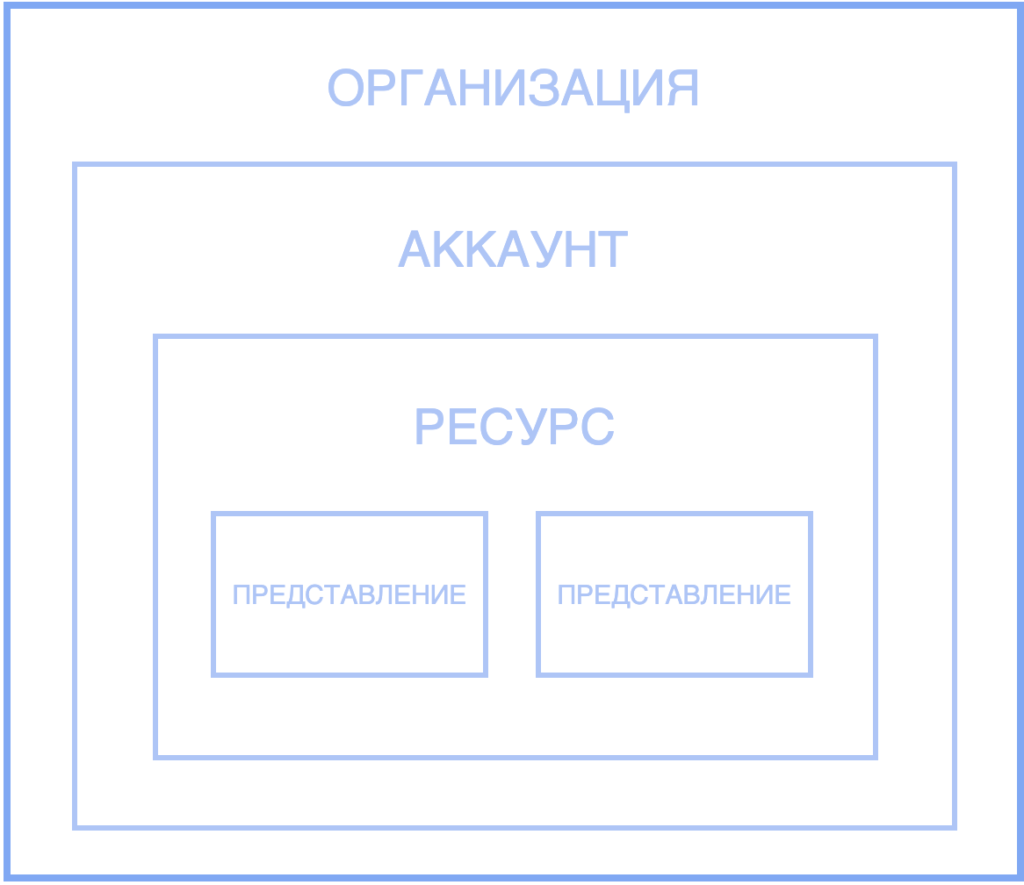
- Anorganization is a structural unit that represents your company. You need it to manage access to Google products in one place. You can manage organizations here.
- An account is your access point to Google Analytics. One organization can have multiple accounts.
- A resource is your website, mobile app, or a specific device (a cash register, for example). When you add a resource, Google Analytics creates a unique tracking code for it. An account can have multiple resources and a resource can have multiple views.
- Views - reports about your resource. To show statistics about a resource, you can give access to a specific view.
How to grant access to the Google Analytics view
- Click on the link. On the bottom left, click on "Administrator".
- At the top will be the "Administrator" and "User" tabs. Usually the "Administrator" tab is open by default.

- Click on "Manage access to the view".
- Click on the blue plus button on the top right.

- Select Add Users.
- In the new window, enter the email address of the access recipient.
- Select the checkboxes for the credentials you want to grant. Click the "Add" button at the top right.

If you are asked to give admin access, you need to enable all 4 checkboxes.
I hope this instruction helped you. If you still have questions, ask in the comments 👇 or write to Telegram.
Related Articles
- SEO-copywriting and LSI: how to optimize an article to please search engines
- Creating a site structure based on the semantic kernel: instructions
- Avalanche SEO Technique - Ranking without resources
- Automated measurement of Web Vitals using a Google spreadsheet
Понравилась статья? Подпишись на рассылку
I don’t think the title of your article matches the content lol. Just kidding, mainly because I had some doubts after reading the article. https://www.binance.bh/es-MX/register?ref=GJY4VW8W
Thank you for your sharing. I am worried that I lack creative ideas. It is your article that makes me full of hope. Thank you. But, I have a question, can you help me?
I don’t think the title of your article matches the content lol. Just kidding, mainly because I had some doubts after reading the article. https://www.binance.com/register?ref=QCGZMHR6
Your point of view caught my eye and was very interesting. Thanks. I have a question for you. https://www.binance.bh/register?ref=QCGZMHR6
Can you be more specific about the content of your article? After reading it, I still have some doubts. Hope you can help me.
Thank you for your sharing. I am worried that I lack creative ideas. It is your article that makes me full of hope. Thank you. But, I have a question, can you help me? https://www.binance.bh/register?ref=L4EUT9FG
Can you be more specific about the content of your article? After reading it, I still have some doubts. Hope you can help me.
Thanks for sharing. I read many of your blog posts, cool, your blog is very good.
Your article helped me a lot, is there any more related content? Thanks!
Can you be more specific about the content of your article? After reading it, I still have some doubts. Hope you can help me. https://growthonics.digital/blog/marketing/reputation-management-for-law-firms/?unapproved=407&moderation-hash=8810569746f44815a1da60be52d3bcd5#comment-407
I don’t think the title of your article matches the content lol. Just kidding, mainly because I had some doubts after reading the article.
I don’t think the title of your article matches the content lol. Just kidding, mainly because I had some doubts after reading the article.